Compress User Images Before Upload on Weebly
We use CropGuide to compress user images before they’re uploaded to Weebly, no technical skills required.
First we need to install CropGuide for Weebly. Then we can set up image compression. This might sound like a lot, but don’t worry, it’ll only take a couple of minutes.
Try a live CropGuide demo on our landing page
Set the output image quality
Set the output image quality in the CropGuide customer dashboard. CropGuide will apply this setting before an image is uploaded.
- Select your website in the Customer dashboard.
- Scroll towards the Configuration heading.
- Then scroll down towards the Image Quality heading.
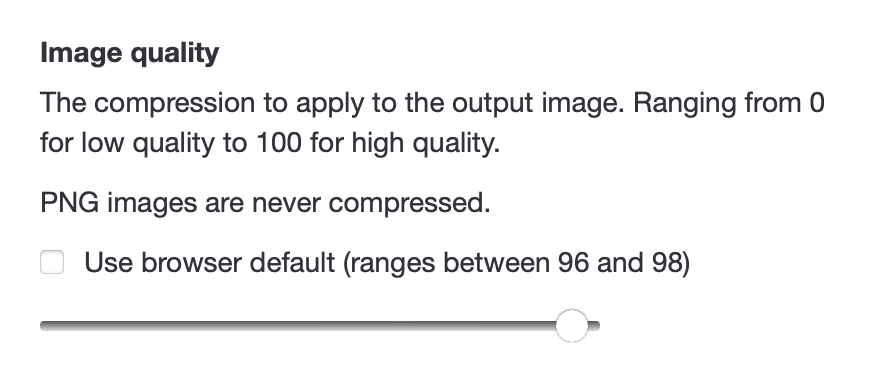
- The higher the value the higher the image quality and the bigger the image size in bytes. We can set it to
70%to get a good compression to image quality ratio. - Click Save.
Prevent low-resolution uploads
If you want to make sure the images users upload contain enough details, you can optionally set the Minimum Crop Size field. This will prevent users from uploading low resolution images.
Now navigate to the form on your website and refresh the page so we can test if our new settings have loaded.
Test image compression
When using the image upload field on your Weebly site, CropGuide will now ensure every image is compressed before upload, resulting in faster uploads, less disk usage, and lower costs for you.
Try a CropGuide demo on the site, or reach out if you have any questions.
Related content
- Add an Image Cropper to your Weebly site
- Crop PAN Card Photos Before Upload on Weebly
- Crop Cédula Photos Before Upload on Weebly
- Crop Identity Card Photos Before Upload on Weebly
- Crop Aadhaar Card Photos Before Upload on Weebly
- Crop Passport Document Photos Before Upload on Weebly
- Crop Circular Profile Pictures on Weebly
- Convert HEIC/HEIF to JPEG Before Upload on Weebly
