Fix User-Uploaded Images
Before They Reach Your Server
Let users crop their photos while CropGuide automatically resizes, compresses, validates, and converts them.
1 minute installation. Works with your existing file upload. No programming required.
Start free Try live demo 100 free edits/month · No credit card required
-
Crop To Aspect Ratio


Every photo cropped to the aspect ratio you defined.
-
Compress HUGE Photos

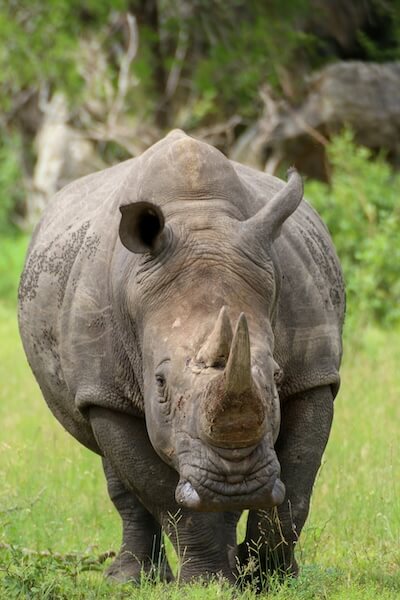
Auto compress big photos and block the ones that are too small.
-
Correct Photo Orientation


Photo orientation is automatically corrected for the user.
Stop fixing uploaded images after they arrive
Save time manually correcting image issues in the backend.
Instead of accepting a 12 MB HEIC photo, discovering it's the wrong aspect ratio and processing it on your server, CropGuide fixes it in the user's browser before upload.
- Less bandwidth
- Less storage
- Less backend processing
- Fewer invalid uploads
- Consistent output
- A better user experience
Crop to a fixed aspect ratio
Adjust the crop, zoom, and rotate the image to make the perfect selection within the defined restrictions.
| Original | Result | |
|---|---|---|
 2048 × 1536
|
 512 × 512
|
Scale down big images
Users no longer receive a "file too big" warning, CropGuide automatically scales images to a maximum size.
| Original | Result | |
|---|---|---|
|
6000 × 4000
|
1024 × 768
|
Auto-correct image orientation
Orientation of mobile photos can be incorrect resulting in flipped images. Our editor automatically fixes this for you.
| Original | Result | |
|---|---|---|
 1536 × 2048
|
2048 × 1536
|
Block low-quality images
Low-quality images never look good. Set a minimum size to prevent low-quality images from ending up in your database.
| Original | Result | |
|---|---|---|
 256 × 192
|
Not added
|
Auto-convert image format
Automatically convert unconventional image formats to a different format. For example HEIC to JPEG.
| Original | Result | |
|---|---|---|
|
HEIC
|
JPEG
|
Give CropGuide a test run below
It's super fast and works on both mobile and desktop devices.
In this demo we'll enforce a square crop, resize big images down to 512 × 512 pixels, and prevent adding images smaller than 256 × 256
Try our editor yourself! Select an image file below.
Take a minute to set up CropGuide on your website and receive better photos today.
Start for freeSeamless image cropping with popular No-Code services
Automagically adds photo editing capabilities to any file upload field.
CropGuide catches photos before they're uploaded and hands them back to your site after editing. This all happens in the browser, no image data is sent to our servers.
We've successfully tested CropGuide with the services below and are confident it'll work fine with other services as well.
-
No-Code Tools
No plugins needed. Add image cropping to default file upload fields with CropGuide.
-
JavaScript Libraries
Library doesn’t support image manipulation? No problem, add CropGuide to the page and it suddenly does.
-
Content Management
Add CropGuide and you can use image cropping functionality with every file upload field.

Easily add our image cropper to your website
1 minute is all it takes.
- 1 Copy our script tag to your webpage.
- 2 Set your photo requirements in our app.
- 3 Get ready to receive better images!
A wide range of options helps you define the perfect image
CropGuide handles the art direction
You decide what images your application needs.
- Shape
- Square
- Image size
- 512 × 512
- Format
- JPEG
- Compression
- 70%
CropGuide makes sure that's what you receive.
Image requirements
| Image minimum size | Minimum image size to allow. |
|---|---|
| Image aspect ratio | The aspect ratio of the output image. |
| Output size | The image output size. |
| Quality | The amount of compression to apply to the image. |
| Format | The image format, a JPEG, PNG, or WEBP image. |
| Fit | How to resize the image when no aspect ratio is set. |
| Upscale | Should the editor upscale images smaller than the defined output size. |
| Background color | The background color to use for transparent images. |
| Mask | Optionally apply a circular mask to the image. |
Editor configuration
| Aspect ratio presets | A list of aspect ratio options to show in the editor. |
|---|---|
| Theme | Which theme to use for the editor. Supports bright and dark mode. |
| Guide | Show a circular crop overlay to help with cropping profile pictures. |
| Locale | The language to use for the editor labels. |
| Headless | Should the editor apply the required changes without opening. |

Respects your privacy and your users' privacy
Image data stays in the browser.
We firmly believe privacy is important, especially so when dealing with images.
To make sure your users privacy is guaranteed, we don't store any user data and all image editing happens in the browser. Your users' images never pass through CropGuide servers.
Fully functional on all modern browsers and devices
Tested on a wide range of mobile and desktop platforms.
-
 Chrome 59+
(desktop and mobile)
Chrome 59+
(desktop and mobile)
-
 Firefox 62+
(desktop and mobile)
Firefox 62+
(desktop and mobile)
-
 Safari 14.1+
(desktop and mobile)
Safari 14.1+
(desktop and mobile)
-
 Edge 17+
(desktop and mobile)
Edge 17+
(desktop and mobile)
-
 Opera 46+
(desktop and mobile)
Opera 46+
(desktop and mobile)
-
 UC Browser 15.5+
-
 Samsung Internet 8+
-
 QQ Browser 14.9
When a browser doesn't have the capabilities to run the CropGuide image editor it will gracefully fall back to your default file upload field.
Frequently Asked Questions
-
Is there an image cropper I can add to my existing upload form without building one?
Yes. CropGuide adds an image editor to an existing file upload field. Add its script to your page and set your image requirements in the dashboard; your form keeps its usual upload process. Try the live demo.
-
Can customers crop photos on their phones before uploading them?
Yes. CropGuide works in modern mobile browsers, so customers can edit a photo before your form uploads it. If a browser cannot run the editor, the original upload field remains available. Try the demo.
-
Does CropGuide replace my existing upload form?
No. CropGuide adds an editor to your existing file upload field and returns the edited image to that field. Your website then uploads it through its usual process. See how installation works.
-
Where are uploaded images processed?
CropGuide edits images locally in the visitor’s browser. The original image is not uploaded to CropGuide servers; your website receives the edited file through its existing upload flow. Read more in our privacy policy.
-
Can CropGuide resize and validate images before upload?
Yes. You can set requirements such as crop aspect ratio and minimum image dimensions, and configure resizing and compression before the file reaches your upload form. See the configuration options.
-
What happens if a browser cannot run the editor?
CropGuide falls back to the default file upload field when the browser does not support the editor.
