How To Require Square Photos In An Upload Form
A member directory looks more consistent when every profile photo is square. But asking each member to crop their photo before uploading creates extra work and often still results in images with the wrong shape.
Let’s make the upload process easier by letting CropGuide prepare a square photo while the member fills out the existing form.
Why Require A Square Photo?
Suppose we have a membership website with a profile form. Each member can add a photo using a normal file upload field.
That photo appears on profile pages, in search results, and in the member directory. If one member uploads a portrait photo and another uploads a landscape photo, the layout can quickly become uneven. This can be fixed by automatically scaling or fitting photos to their containers but that means a photo can get cut off, or even worse, squished.
We could add instructions asking everyone to upload a square image, but not everyone knows how to make one. It is more practical to give them a crop tool at the moment they select their photo.
Set The Crop Aspect Ratio To A Square
In the CropGuide dashboard, find the Crop aspect ratio setting and set it to 1.
An aspect ratio of 1 means the width and height are equal. In other words, the crop is always 1:1, or square.
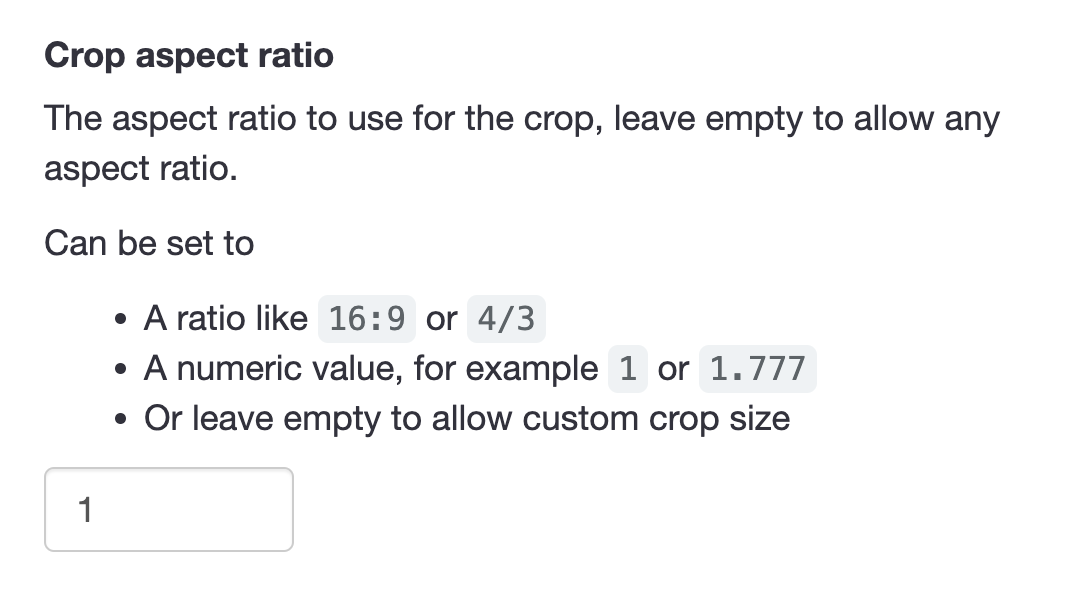
Save the setting and CropGuide will apply it when a customer selects an image in the upload form.
There is no code to add for this. The aspect ratio is managed from the dashboard.
What Does The Member See?
The member uses the profile form as they normally would:
- They select a photo in the existing upload field.
- CropGuide opens the photo in our image editor and forces a square crop.
- They move or zoom the photo until it looks right.
- They confirm the crop and continue submitting the form.
The member does not need to know what an aspect ratio is. They can simply position their face inside the square and see the result before uploading it.
Once they confirm, the existing form receives the square result. The form can then upload and process that image in the same way it already handles other files.
Do We Need To Replace The Form?
No. We don’t have to rebuild or replace the upload process.
We install CropGuide by copying its script to the website. It then works with the file upload field that is already part of the profile form.
Follow the installation guide to add the script, or browse the available website and form integrations for platform-specific instructions. For a complete overview of the upload flow, see how to let users crop images before uploading.
Can We Also Require Circular Photos?
Setting the crop aspect ratio to 1 produces a square image. This is also the right starting point when the website displays profile photos as circles.
A circular guide or mask is optional. It can help members preview how a square photo will look in a round profile frame, but it is separate from the square aspect ratio setting. We cover those options in more detail in cropping perfect profile pictures.
Ready For Square Uploads
Using a square crop aspect ratio every member gets the same cropping step and the existing form receives a consistently shaped image.
Want to see the upload flow first? Try the CropGuide demo.
