Easily Manage Article Header Images with Eleventy and Sharp
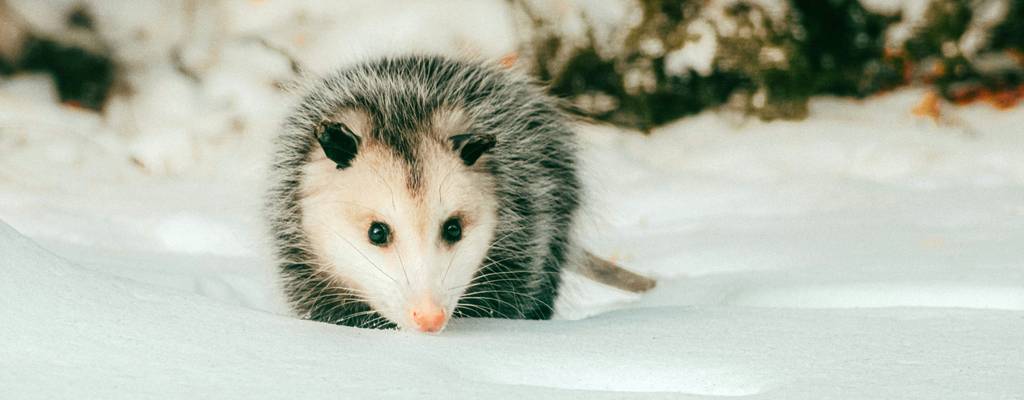
We found that managing article images on this blog was tedious. Search an image, add the image tag, place the attribution link. We decided to automate most of this process, here’s how we did it.
With the Eleventy adjustments in this guide applied we can now download an image from Unsplash, or Pexels, prefix it with our article’s slug, drop it in our media folder and done! The script will automatically resize, compress, and attribute the image (just like the above Possum).
Let’s go!
Adjusting the Blog Layout
Our blog _layout already rendered the page title, date, and content. We needed to add the article image and attribution link to it.
Perhaps some articles don’t require images so we test if the blog has an image, if so we render the image and the attribution link.
{% set image = getBlogImage('/blog/media/' + page.fileSlug) %}
<!-- Did we find an image? -->
{% if image %}
<img src="{{ image.src }}" />
<a href="{{ image.attrLink }}">{{ image.attrLabel }}</a>
{% endif %}
We’re going to add the getBlogImage function later, let’s for now continue with copying the media files.
Adding and Copying the Article Images
Next we created a media folder inside our blog folder. This media folder contains the blog article images (prefixed with the article slug).
blog
  - our-article-slug.md
  media
     - our-article-slug_1234abcd-unsplash.jpg
We’re going to have to copy these images to our _site folder. This can be done with the Eleventy addPassthroughCopy method. Don’t worry about optimising these images, we’ll do that in a later step.
eleventyConfig.addPassthroughCopy('./src/blog/media');Adding the getBlogImage Function
We first subscribe to the eleventy.before hook where we gather all media files in the src folder so we don’t have to access the file system while rendering templates. We’re going to use this mediaFiles array in our getBlogImage function.
import { glob } from 'fs/promises';

const mediaFiles = [];

eleventyConfig.on('eleventy.before', async () => {
    const files = glob(__dirname + '/src/**/*.jpg');
    for await (const file of files) {
        mediaFiles.push(file.replace(__dirname + '/src', ''));
    }
});
Eleventy has a super handy addGlobalData method that allows you to add globally available data objects and functions.
Now we can simply search in our mediaFiles array to see if a media file exists in our project. The getBlogImage function goes through the media files and finds the first file that starts with our query, it then returns the required image information to render the article image and attribution link.
eleventyConfig.addGlobalData('getBlogImage', () => {
    return (query) => {
        // find the first media file that starts with our query (that's the article slug)
        const media = mediaFiles.find((file) => file.startsWith(query));

        // none found, don't render an image
        if (!media) {
            return;
        }

        // image found, let's split up the media path so we can determine the attribution URL
        const [, ...rest] = media.split('_');
        const source = rest.join('_').split('.')[0];

        let label = '';
        let link = '';

        // deal with unsplash sources
        if (source.includes('-unsplash')) {
            label = 'Photo from Unsplash';
            link =
                'https://unsplash.com/photos/' + source.split('-unsplash')[0];
        }

        // deal with pexel sources
        if (source.includes('pexels-')) {
            label = 'Photo from Pexels';
            link = 'https://pexels.com/photo/' + source.split('pexels-')[1];
        }

        return {
            src: media,
            attrLink: link,
            attrLabel: label,
        };
    };
});
Alright, everything should be working now, but images aren’t being optimised and the blog articles are showing full size images instead of images cropped to a more optimal 1024 x 400 article header format.
Optimizing and Cropping the Article Images
We’ve copied over the article images with addPassthroughCopy, now it’s time to automatically optimize and crop them.
We can subscribe to the eleventy.after hook, it gets called after each Eleventy run.
import { glob, readFile, writeFile } from 'fs/promises';
import { sharp } from 'sharp';

eleventyConfig.on('eleventy.after', async ({ dir }) => {
    // where to save the optimised images?
    const dest = dir.output + '/blog/media/';

    // get the source images
    const sourceImages = glob(dir.input + '/blog/media/*.jpg');

    // loop over the source images
    for await (const sourceImagePath of sourceImages) {
        // get the file name
        const name = sourceImagePath.split('/').pop();

        // read image metadata
        const metadata = await sharp(sourceImagePath).metadata();

        // optimise the image with Sharp
        const input = await readFile(sourceImagePath);
        const output = await sharp(input)
            // compress the image
            .jpeg({
                quality: 70,
            })
            // resize it to be 1024x400 (this automatically crops instead of skews the image)
            .resize({
                withoutEnlargement: true,
                width: Math.min(metadata.width, 1024),
                height: 400,
            })
            .toBuffer();

        // write the optimised file
        await writeFile(dest + name, output);
    }
});
Conclusion
When we’re working on a new article we can now quickly search for a fitting image on Unsplash or Pexels and copy it to our blog/media folder. It’s then instantly added to the article. This makes the barrier to adding an image lower which results in nicer articles and lots of time saved manually cropping and optimising article images.
We can take this idea further by generating multiple versions of an image. For example a smaller version for use on mobile devices or in an article overview. We could also cache generated images and only generate new ones if an image modified date has changed. For now this article should help you get some ideas on how to make managing article images easier.
Here at CropGuide we offer cropping for user submitted images. Users can crop their images before they upload them to your server. If you’re a web developer it’s probably of interest to you, we offer a 100% free tier. You can try a demo on our landing page.
